RECEIPT / 001
KEDAI LOKA#001 · TAKE AWAY
Sample data1 × Milk coffee18.000
1 × Toast12.000
TotalRp30.000
Payment complete
01
Receipts, ready.
Print to a thermal printer.
A REGISTER FOR YOUR SHOP
Orders, payments, stock. All recorded.
Open your register30 days free
01 / LOKA KASIR
Payment complete
Print to a thermal printer.
Low stock
Sales recorded. Stock updated.
Cash balanced
A record for every shift.
More than a point-of-sale app
From the moment a customer orders to the moment you read the profit report, the whole operation stays connected under one account.
Move the queue quickly without making staff learn a complicated workflow.
Tables, kitchen, and register all receive the same order without anyone copying it out.
Know what is running low, what ingredients were used, and what margin is actually left.
Every shift, cash count, attendance record, and sensitive action has an owner.
Recognise regulars and give them a reason to return without a separate member app.
Run the business from a browser, including when you are nowhere near the shop.
Android and Windows for the register, plus Web Admin for owners. Feature availability follows your chosen plan.
02 / ANDROID + WINDOWS
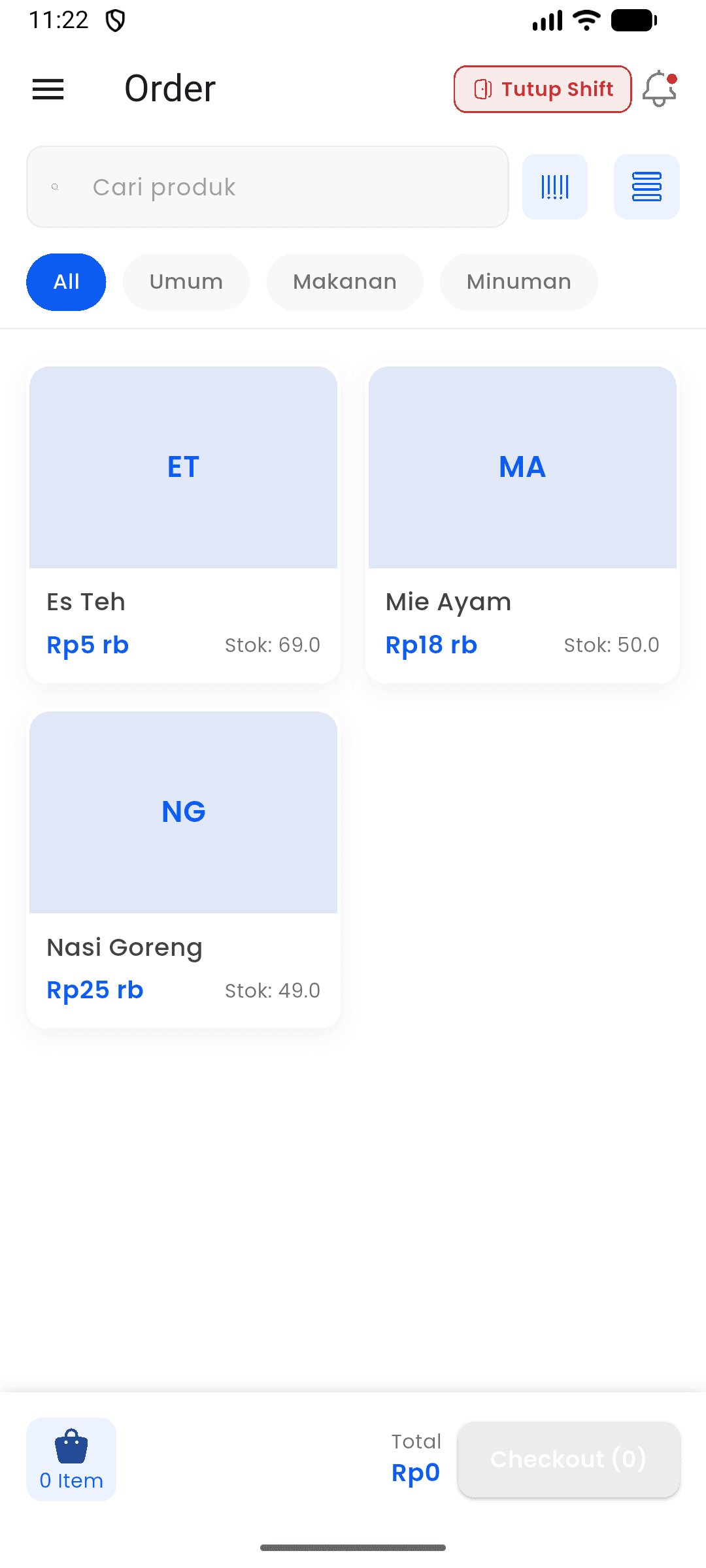
Choose products. Add to the order.
↳ Actual app screens.Sales, stock, and reports in your browser.
Aggregated usage data from Loka Kasir — refreshed automatically every 10 minutes.
03 / LOKA
Try every Pro feature free for 30 days.
For your first sales.
For a growing shop.
Additional outlets billed separately.
Every POS and business-management feature. The first outlet is included; additional outlets are billed separately.
Prices include tax. Payment by bank transfer or e-wallet.
04 / LOKA
There are two ways in, and they end up in the same place — one account that works everywhere: • In a browser — open https://app.lokakasir.id/register from a laptop or phone, with nothing to install • In the app — install from Google Play (Android) or the Microsoft Store (Windows) and sign up inside it Either way you'll enter your owner details, your type of business (food, retail, or services), and your first outlet. A verification code goes to your email. After that you have 30 free days with everything unlocked — no commitment. A sensible order to set things up: 1. Create the account and your first outlet 2. Add staff and decide what each role can do 3. Create categories and add products 4. Install the register app on your shop device and register the terminal 5. Ring up a test sale Reports, inventory, and multiple outlets all live in Web Admin at https://app.lokakasir.id, using the same account.
Yes — 30 days with every Pro feature open, up to 5 outlets, unlimited transactions, nothing to cancel. One detail worth knowing: the 30 days are counted from your first sale, not from the day you sign up. So you can create the account, take your time entering products, and install the app when you're actually ready — none of that eats into the trial. When it ends, you choose: • Free — the core register, 1 outlet, up to 100 sales a month, free indefinitely • Pro — every POS feature, multiple outlets, analytics, attendance, suppliers, purchase orders, food cost, price suggestions, profitability, and loyalty. The first outlet is included.
The register app is what your staff use at the counter — taking orders, accepting payment, opening and closing shifts, and running the kitchen display. Cashiers sign in with a PIN rather than an email address. Web Admin runs in a browser and is where the owner or manager works — reports, products and prices, staff, costing, and settings. Both talk to the same system, so a sale rung up at the counter shows up in your reports immediately.
It bends to a fairly wide range: • Restaurants and cafés — tables, kitchen display, dine-in / takeaway / delivery • Corner shops and grocers — fast sales, straightforward stock • Retail and fashion — variants by size and colour, multiple outlets • Bakeries and drink bars — recipes for working out ingredient cost • Workshops and services — jobs that also consume parts Your business type decides the order flow: retail settles immediately (pay and done), while food and drink goes through kitchen states — pending, preparing, ready, served.
The register keeps working. Sales are processed and stored on the device, and everything uploads on its own once the connection returns — your reports catch up without you doing anything. The one exception is payment methods that need to be verified online, like QR and card. Cash carries on as normal.
Before a cashier serves the first customer, make sure: • The outlet exists and is configured • The register terminal is registered and tied to the device • At least one product exists, with a selling price • At least one staff member has the cashier role • The payment methods you accept are switched on If you run a food business, also add your tables and turn on the kitchen display if there's a kitchen.
1. Open the shift — enter the opening cash float, pick the terminal 2. Ring up the sale — choose items, set quantities, apply any discount 3. Choose the payment method — whichever ones you've enabled 4. Confirm payment — change is worked out for you 5. Receipt — print it, or send it by WhatsApp or email 6. Close the shift — count the drawer and read the summary A single sale usually takes 30 to 60 seconds end to end.
A shift is a working session that every sale is attached to. Cashiers open one first so that: • Each sale lands in the right session • The day can be broken down per person, not just per date • The cash in the drawer can be reconciled against what the system expected • You can see when the shop actually opened and closed At closing, the cashier counts the physical cash. The system works out the difference and totals sales by payment method.
No. Once a device is tied to a terminal, cashiers open their session with a 4-digit PIN. It's faster, safer at a busy counter, and avoids password trouble mid-queue. Owners and managers set each person's PIN from Web Admin.
With the kitchen display: 1. The cashier or server picks a table, adds items, and saves the order 2. It appears on the kitchen screen straight away 3. The kitchen accepts it (pending) 4. Cooking starts (preparing) 5. The dish is up (ready to serve) 6. A server takes it out (served) 7. The cashier settles payment and the sale completes Everyone can see the state of each item from the app, so nobody has to walk to the kitchen to ask.
Cash, QR payments, debit and credit cards, and bank transfer. Which of them appear at the register is entirely up to you — you switch them on in Web Admin. Each sale uses one payment method. Splitting a bill across several methods isn't supported.
Three ways: • Automatic — set up in Web Admin, applied on their own to certain products, categories, or the whole sale, optionally within a date range • Manual — the cashier enters an amount or a percentage during the sale • Supervisor-approved — for larger discounts, a manager approves with their own PIN without the cashier having to log out They can be combined within one sale.
• Cancel — before the sale is paid. Stock goes back automatically. • Refund — after it's been paid. The sale is marked refunded, stock returns, and it shows in reports as money going back out. Both are permissions you control per role. By default a cashier can cancel, while a refund needs a manager's approval.
Yes — the common thermal printer brands, over Bluetooth or USB. Receipts print automatically once payment is settled, or on demand. Paper size and what appears on the receipt are configurable per outlet.
Two ways: 1. One at a time — from Products in Web Admin: name, category, cost, selling price, and stock options. You can add variants (size, colour, flavour) per product. 2. Import a CSV — for a large catalogue, download the template, fill it in, and upload the lot. Categories that don't exist yet are created for you. Once a product exists, you can enter its opening stock per outlet.
Variants are versions of the same product — a latte in small, medium, and large, or a shirt in several colours and sizes. Each variant carries its own price and stock. To set them up: 1. Create the attribute (for example "Size" with S, M, L) 2. Turn on "has variants" on the product 3. Enter price and stock per combination At the register, the cashier picks the variant as they add the item.
Two layers. Finished products (all plans): Each product has a minimum stock level you set per outlet. Drop below it and a warning appears on the Current Stock page. Raw materials (Pro): Each material has its own alert threshold. When one falls below it, an orange banner appears at the top of the Raw Materials page listing what needs reordering, with current level against the minimum.
A bundle sells several products together at one special price — a set meal of rice, a main, and a drink for less than buying them separately. Create it under Library → Bundle: choose the products and set the bundle price. When it sells, the stock of each component comes down accordingly.
From Stock Transfer in Web Admin: 1. Create the request — source outlet, destination, product, quantity 2. It sits as pending 3. The destination approves it 4. Complete the transfer 5. Stock leaves one outlet and arrives at the other 6. Both movements appear in the stock history Transfers need their own permission, which you can grant per role.
Cost of goods is what the ingredients or materials in one item actually cost you. Knowing it accurately lets you: • Set a price that doesn't quietly lose money • See the real margin on each product • Find out which products are worth pushing • Decide from numbers rather than impressions Without it, it's entirely possible to sell something that looks profitable and isn't, once ingredients and overhead are counted.
1. Register the raw material — name and unit (kg, litre, each) 2. Record stock coming in — quantity and purchase price → the average cost updates automatically, by moving average 3. Add a recipe to the product — which materials, and how much per serving → the product's base cost is worked out live from average cost × quantity 4. Set your overhead — fixed monthly costs ÷ expected volume = overhead per item 5. Read the suggested price — cost + overhead + your target margin
It works out your average cost across your whole purchase history rather than jumping to whatever you paid most recently. New cost = (old stock × old cost + quantity in × purchase price) ÷ (old stock + quantity in) For example: 10 kg on hand at 12,000 each, then 20 kg bought at 14,000 → (10×12,000 + 20×14,000) ÷ 30 = 13,333 per kg. The effect is that a single expensive purchase doesn't suddenly distort your margins.
A recipe lists the materials and quantities that go into one serving. 1. Open the product in Web Admin 2. Go to the Recipe tab 3. Search for each material 4. Set how much is needed per serving 5. Save The base cost appears immediately. From then on, selling the product draws its ingredients down automatically.
Yes. Whenever a product with a recipe is sold and paid for, each ingredient is reduced by the recipe quantity times the number sold. This runs in the background so it never slows down payment. If a reduction fails for any reason, the owner is notified so it can be reconciled by hand.
Overhead is the fixed monthly cost of being open that isn't tied to any one item — rent, admin salaries, electricity, internet. Under Finance Settings you enter: • Total fixed monthly cost • The sales volume you're aiming for • → overhead per item = one divided by the other Suggested price = (ingredient cost + overhead) × (1 + your target margin).
On the Raw Materials page, use the flame icon on the material's row. Enter how much was lost and why (expired, spilled, and so on). The system then: • Reduces the stock by that amount • Records it as waste, distinct from an ordinary stock-out • Leaves your average cost untouched — waste doesn't change what you paid Recording it properly keeps your costing accurate and makes leakage visible.
A purchase order is a formal order to a supplier. 1. Add the supplier — name, contact, phone, email 2. Create the PO — number, supplier, and the items with quantity and price 3. Mark it ordered once it's confirmed with the supplier 4. Receive the goods — enter what actually arrived and the final price → stock goes up, and average cost is recalculated 5. It closes as partially or fully received POs give you a purchase history, a comparison between suppliers, and something to reconcile stock against.
Yes, on the Pro plan. Customers collect points as they buy and spend them as a discount next time. You set the rules: how many points per unit of spending, what a point is worth, and the minimum before they can be redeemed. Points accumulate on their own, and staff can also add them by hand. Every change — earned, redeemed, balance — is recorded per customer in Web Admin. No separate membership app is involved; it all happens at the counter.
Customer records — name, phone, email, address — are on Pro. The free plan doesn't include customer management. On Pro, each customer also carries a loyalty balance you can see and adjust from Web Admin.
They come in layers. Every plan, free included: • 30 days of transaction history — searchable and filterable, with full detail Pro: • Shift financial report — opening float, sales, refunds, discrepancy, and a breakdown per payment method • CSV export of transactions and shift finances Pro only: • Deeper analytics — peak hours, best sellers, outlet comparison, weekly and monthly revenue trends • Full stock movement history — in, out, adjustments, waste, transfers • Per-product profitability — revenue, cost of goods, gross profit, margin • Net profit and net margin, after overhead
How much each product actually earns you once real costs are counted, rather than how much it turned over. Per product: units sold, revenue, total cost of goods (ingredients plus overhead per item), gross profit, and margin percentage. Products are colour-coded by margin — green at 30% or above, amber between 15% and 30%, red below 15% — over the last 7, 30, or 90 days. One caveat: it's only accurate for products that have a recipe, since that's where the cost comes from.
Yes. Every report in Web Admin takes an outlet filter from the dropdown in the header, and updates as you switch. Choose "All outlets" for the whole business combined.
Reports export to CSV directly from the report page on Pro. CSV opens in Excel, Google Sheets, or any spreadsheet app. Pro also exports a double-entry accounting journal (debits and credits) for handing to your accounting software, which makes the monthly reconciliation considerably less painful. PDF export is still being built.
Six to start from: • Owner — everything, including permissions and financial reports • Admin — full Web Admin access, like a manager • Manager — everything except changing permissions • Cashier — the register app only: shifts, sales, payment. No financial reports • Warehouse — full inventory (materials, POs, suppliers) with no register or financial access • Waiter — takes orders and manages tables, but can't take payment Each role's defaults can be adjusted for your business.
Yes — Settings → Permissions, where you switch individual capabilities on and off per role. For instance: let cashiers see their own shift summary; stop managers opening the full financial reports; let warehouse staff raise a purchase order but not delete a supplier; allow supervisor override only from manager upwards. Changes take effect immediately — nobody has to log out and back in.
From Web Admin → Staff: 1. Add staff 2. Enter their name, email, phone, and role 3. Assign them to one or more outlets 4. They receive an invitation by email and set their own password Cashiers don't need that email day to day — once the device is tied to a terminal, a PIN is enough.
It lets a manager authorise something sensitive — voiding a sale, a large discount — right there on the register, without the cashier logging out. The cashier requests approval on screen, the supervisor enters their PIN, and the action goes through recorded against whoever approved it. It keeps cashiers from needing permissions they shouldn't have, without holding up the queue.
Outlets depend on the plan: • Free — 1 outlet, up to 100 sales a month • The 30 free days — full Pro access, up to 5 outlets • Pro — unlimited outlets; the first is included and each additional one is charged monthly Staff are unlimited on every plan, including free. You can move up or down between plans at any time without losing data.
No hidden ones. The subscription covers the features in your plan, ongoing updates, and support. The only thing that can be added is extra outlets on Pro, charged per outlet from the second one onward. There is no setup fee, no per-transaction fee, and no per-user fee — we never take a cut of your sales.
It's free on two platforms: - Android phones and tablets, from Google Play - Windows 10 and 11 PCs and laptops, from the Microsoft Store Web Admin runs in any browser — Chrome, Safari, Firefox, Edge — on a PC, laptop, or tablet. For a comfortable experience, Android 8 or newer with 3 GB of RAM, or Windows 10 version 1809 or newer. The Windows build is deliberately small: about a 30 MB download and roughly 200 MB of memory in use, so an older laptop with 2 GB still copes.
• Encrypted in transit (HTTPS/TLS) • Session tokens that expire • Role-based access, so each person only reaches what they're allowed to • Cashier PINs are never stored as plain text • Regular automatic backups We do not sell or share your business data with third parties.
Yes, and you don't have to be a paying customer. If something about how your business runs isn't covered — a particular report, a receipt format, a device you want connected — send it to us by WhatsApp, Instagram @lokakasir.id, or help@lokakasir.id. Include your business name, what kind of business it is, what you need, and why. The clearer the context, the easier it is to judge. Every request is read. The ones the most people need get built first and ship as a free update for everybody. If it's very specific to you, we can talk about that separately.
Yes — with businesses of any size and kind: minimarkets, supermarkets, cafés, restaurants, retail, wholesale, and services. Things worth discussing: adapting the system to how you already operate, rolling it out across a chain or franchise, and reseller or local installation partnerships. Message us with your business name, type, number of outlets, city, and what you have in mind.
• Email help@lokakasir.id — answered within one working day • Instagram @lokakasir.id for updates and tips For general questions, the answers above are the fastest route. For something specific and urgent, email us with your business name and what's happening.